I wanted a small thing from my e-reader: to write a quick thought beside a passage, then keep reading. I also wanted to select a sentence with my finger, highlight it, and look up a word without changing modes every few seconds.
That became PageScribe, my handwriting plugin for KOReader, and Dictionary Audio, a separate plugin for offline pronunciation. They can work together, but neither requires the other. This is the first entry in Builds, where I’ll share what I make, the decisions behind it, and what still needs work.
The pen writes. The finger selects.
The most useful interaction turned out to be the simplest. With PageScribe’s default “Pen writes · Finger selects” mode, the pen draws while finger long-press and drag retain KOReader’s native text selection. That means ordinary text highlights, dictionary lookups, and text notes remain available.
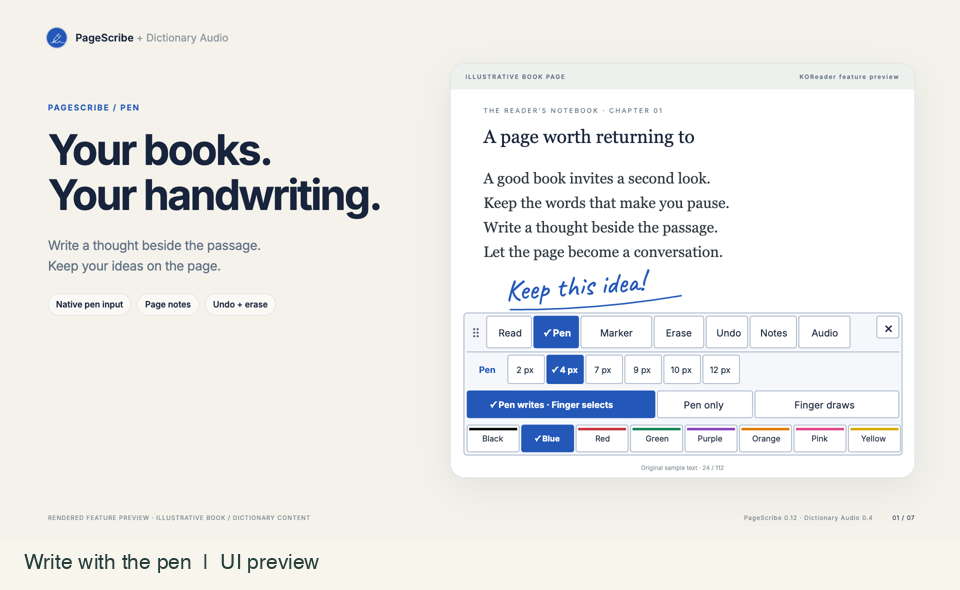
There are two different kinds of highlighting here. Marker draws a freehand overlay across the page. Selecting text with a finger creates KOReader’s normal text annotation. Keeping that distinction clear matters: sometimes I want a loose mark around an idea; sometimes I want a precise sentence I can find again.
PageScribe also offers an eraser, undo, page notes, HTML notebook export, and PDF ink export on supported KOReader versions. It builds on SMUsamaShah’s original Finger Ink project, whose open-source foundation made this work possible. The inherited AGPL-3.0 license and history are preserved.
A toolbar that leaves room for the book
The interface went through several iterations. A circular menu looked appealing, but in use it wasn’t clear enough which tool was active or what the next tap would do. A larger tray made actions clearer, then covered too much text.
The current approach starts with a small round handwriting launcher midway down the right edge. Tapping it opens a larger inline toolbar. Pen widths, input modes, and colors expand next to the tools, keeping the page in view. The active tool has a filled button and checkmark. Both the launcher and tray can be dragged; the × closes the tray while leaving the launcher available.
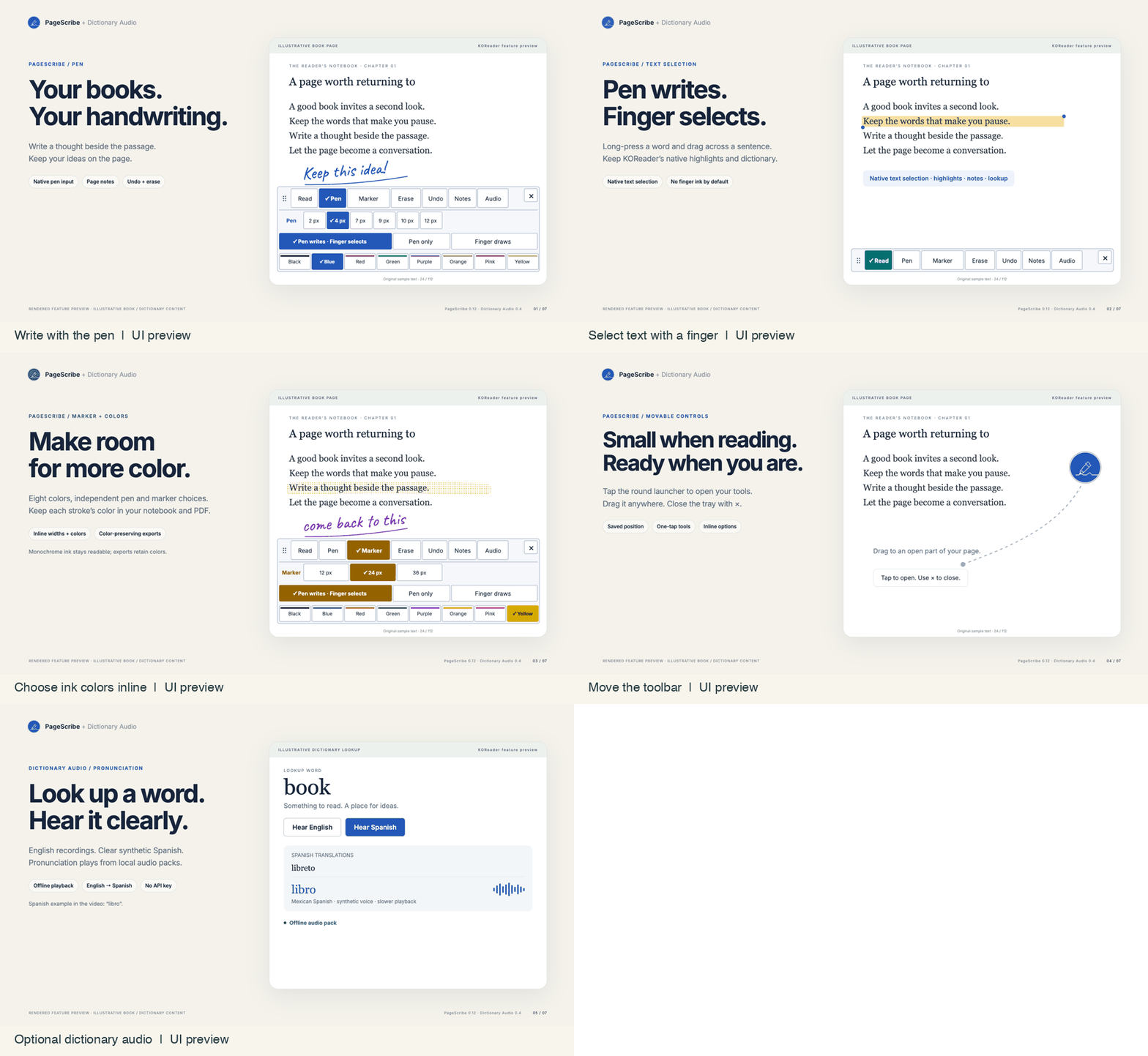
Pen and marker colors are remembered separately. Color devices can show the palette, while monochrome displays use readable black ink. HTML and PDF exports retain chosen stroke colors. That makes color useful without making it essential to understanding the controls.
Pronunciation should be optional
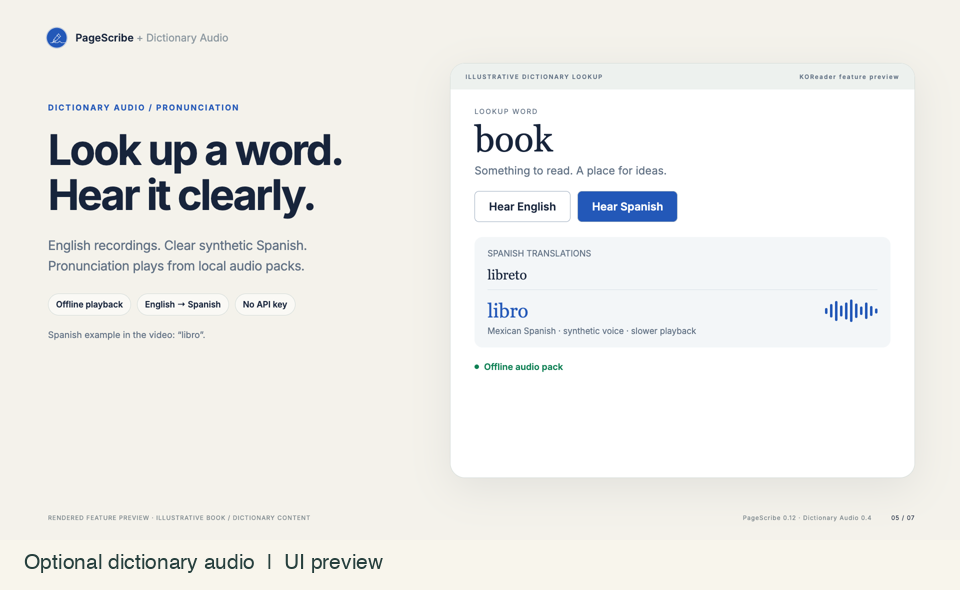
While reading, I also wanted to hear unfamiliar words. Dictionary Audio adds Hear English and Hear Spanish actions to native dictionary lookups on Android. Spanish offers translated-word choices and configurable playback speeds, with English and Spanish enabled independently.
The Spanish pack uses a synthetic Mexican Spanish voice. It is generated ahead of time and played locally, rather than making an online speech request each time a word is selected. Definitions, translation data, and pronunciation packs are separate downloads; installing the plugin alone does not install them.
I split audio into its own repository so people who only want pronunciation can use it without a handwriting toolbar. If both plugins are installed, PageScribe offers an Audio shortcut. If only PageScribe is installed, handwriting works on its own.
The installation detail I needed to explain better
A Reddit reader asked why the PageScribe ZIP contained fingerink.koplugin instead of pagescribe.koplugin. That was fair feedback. The product name changed, but the installation folder was retained to preserve settings, notes, and upgrades.
Here is the exact installation: download the pagescribe.koplugin.zip release asset, extract it, and copy the whole fingerink.koplugin folder into KOReader’s plugins directory. The resulting file path must be koreader/plugins/fingerink.koplugin/main.lua. Do not rename the folder or nest it twice. It appears as PageScribe inside KOReader.
Fully restart KOReader, enable PageScribe in the plugin manager if needed, and open a book. The launcher appears inside the reader, not on the library or home screen. Tap it, choose Pen, and check the input mode. Read returns to ordinary reading. Dictionary Audio has its own ZIP, installation instructions, and packs.
The README now leads with that folder explanation, includes a directory tree, and walks through first use. A working feature still needs a clear path from download to first successful action.
What has been tested—and what remains
Development and hands-on use have centered on a Viwoods AiPaper Mini with KOReader v2026.07.2-206. Native pen input needs a compatible device and a KOReader build exposing the stylus callback API. Finger drawing requires KOReader 2026.03 or newer; PDF ink export requires 2026.07 or newer. Competing handwriting capture plugins should be disabled while testing PageScribe.
Boox Tab Ultra C testing is ongoing. The PageScribe launcher appears, and English audio plays. Spanish playback has been silent on that device; a replacement PCM WAV pack has been transferred and checksum-verified, but audible playback still awaits confirmation. I’m keeping that limitation visible rather than presenting all Android hardware as verified.
Handwriting on reflowable books is tied to page layout. Changing font size, margins, or orientation can change its alignment. Keep the layout stable for existing ink. These are page overlays, not handwriting that automatically follows a sentence through every reflow.
The images and animation accompanying this article are labeled rendered UI previews, using an illustrative book page. They explain the controls; they are not photographs or captures of an attached device, and they do not demonstrate latency or palm-rejection performance.
Try the builds
If you try either plugin, share your device, KOReader version, input mode, and the exact step that worked or failed. Reports about pen/finger behavior, toolbar placement, and pronunciation playback help turn a personal build into something more people can use.